"Hey Grok.. set it to 70, save a dashcam clip, and find me the nearest fast food location."
Three things, done. One sentence, and I never touched anything!!
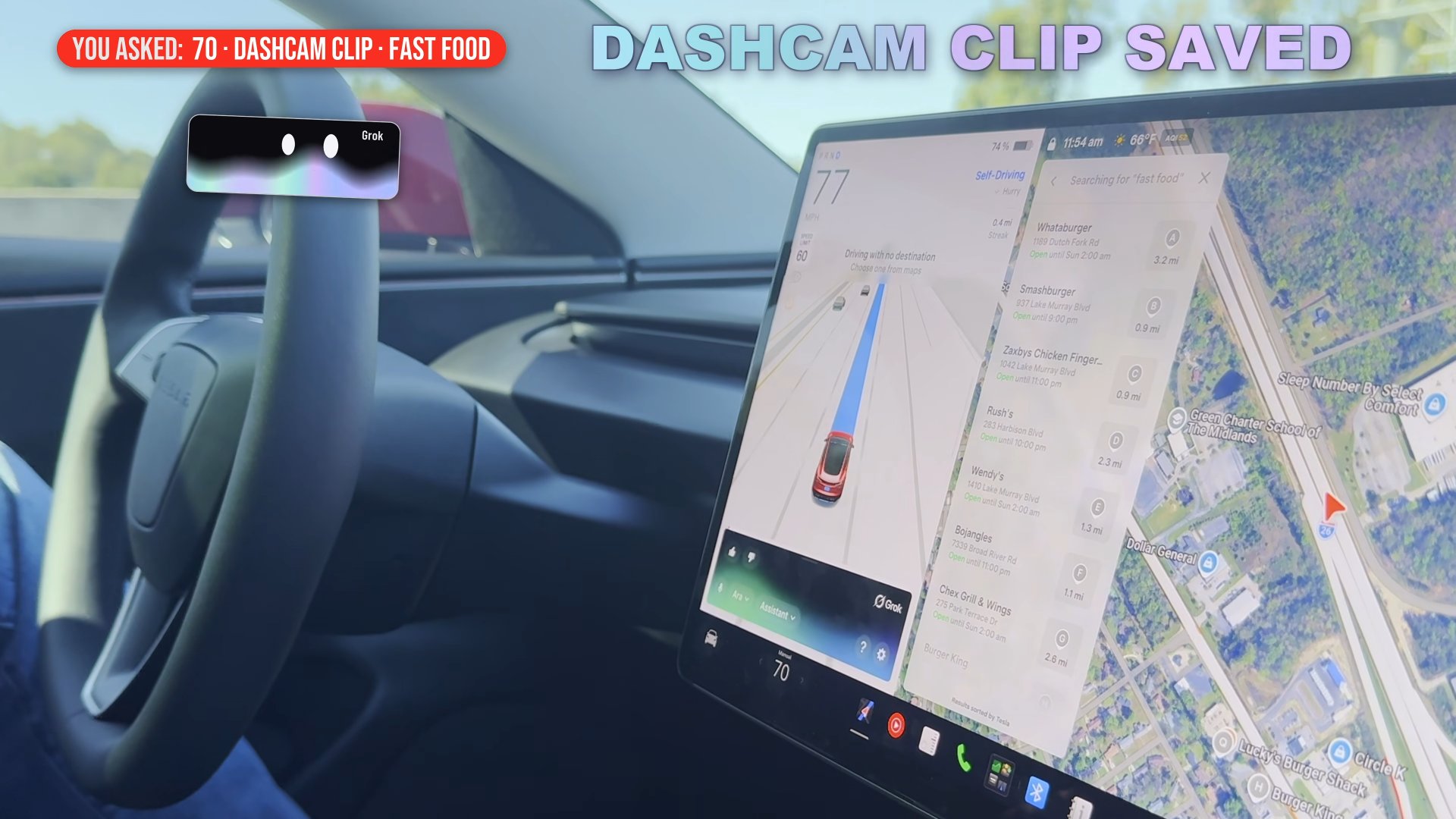
If you've got a Tesla, there's a really good chance you can do this right now too. Here's how to find out if you have it (or can get it), how to set it up, and a bunch of examples so you really see what it can do.
Two buttons, one job
Talking to the car used to be two totally different things.
- Single tap the mic button on the steering wheel and you got the normal assistant, with a green bubble. It could control things in the car, but you had to say it exactly right.
- Long press that same button and you got Grok, a black box with flowing colors along the bottom. It could talk your ear off about anything in the world, but it couldn't control any part of the car.
Updated Grok still does everything it used to AND controls the car. And honestly, it does it way better than the old green bubble assistant ever could.
Does your car get it?
Three things:
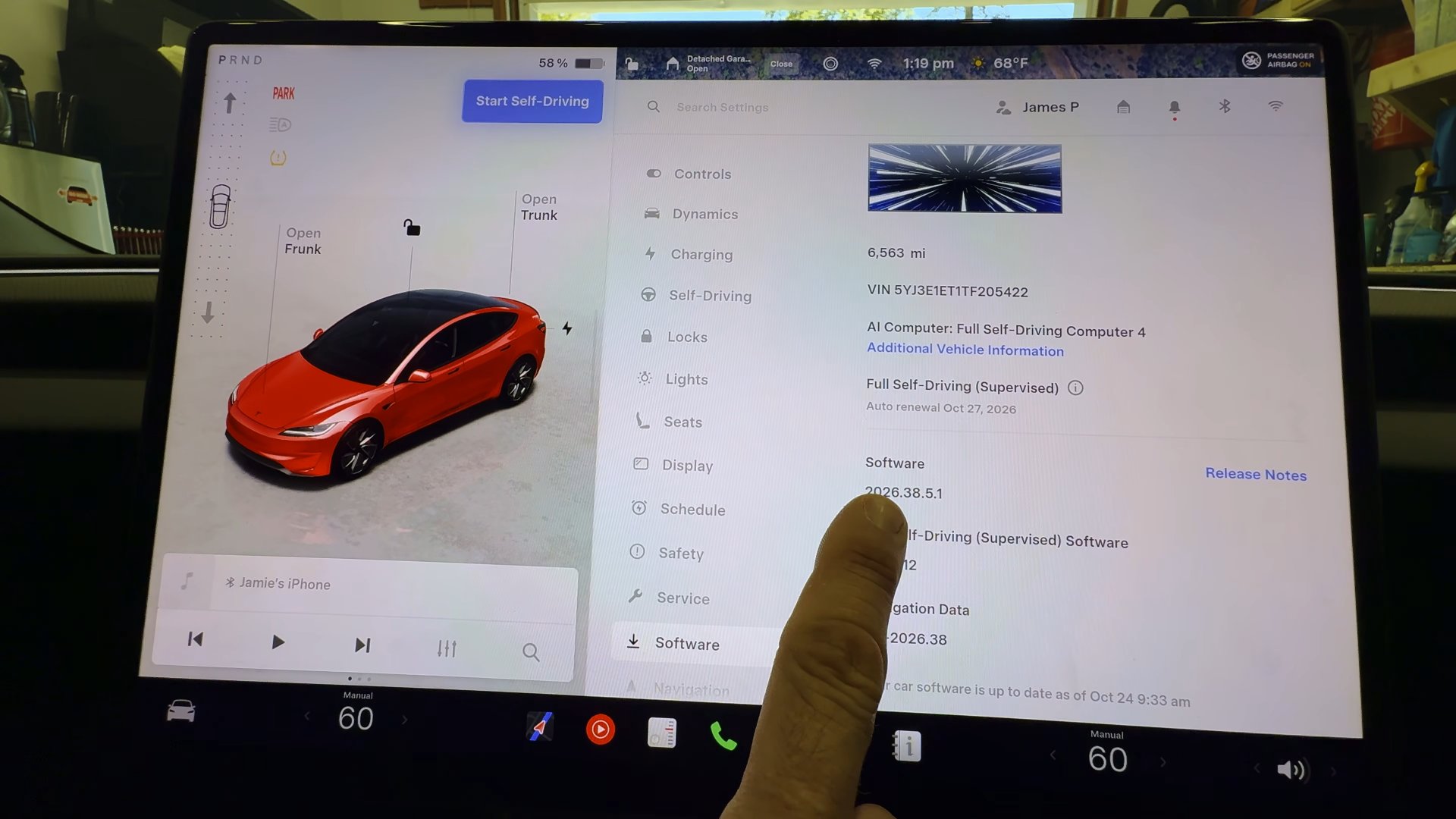
- The AMD chip. Teslas built from roughly late 2021 on use AMD chips for the center screen. Those cars get Grok. Older cars with the Intel chip don't. Not sure? Go to Controls, Software, then tap Additional Vehicle Information and look for Infotainment Processor. If it says AMD, you're good.
- Software 2026.26 or higher. The version number is right on that same Software screen. If you have the AMD chip but an older version, you're just an update away. You'll have to wait a bit longer, unfortunately.
- A data connection. Premium Connectivity or Wi-Fi, which most everyone has.
Green bubble vs black box
The old green bubble still pops up if you single tap the mic. I won't go so far as to say it's useless, but I haven't wanted to use it since this update. If it pops up, cancel it. Press and hold the mic button instead, and that black box with flowing colors shows up. That's the one you want.
The old assistant expected something very specific, like "Directions to McDonald's" or "Turn on driver's side seat heater." Say it a little differently and it got lost. So I tried this:
"Take me to the closest restaurant where their slogan is 'I'm Lovin' It'."
McDonald's. It nailed it, and that was about the farthest thing from specific.
How to turn on "Hey Grok"
There's an even easiererrur way to start it.. your voice. You have to turn that on first:
- Long press the mic button.
- When the black box pops up, tap the gear icon in its bottom right.
- Turn on activate on "Hey Grok".
- While you're in there, I highly recommend turning on share precise location, so Grok can tailor its suggestions to exactly where you are.
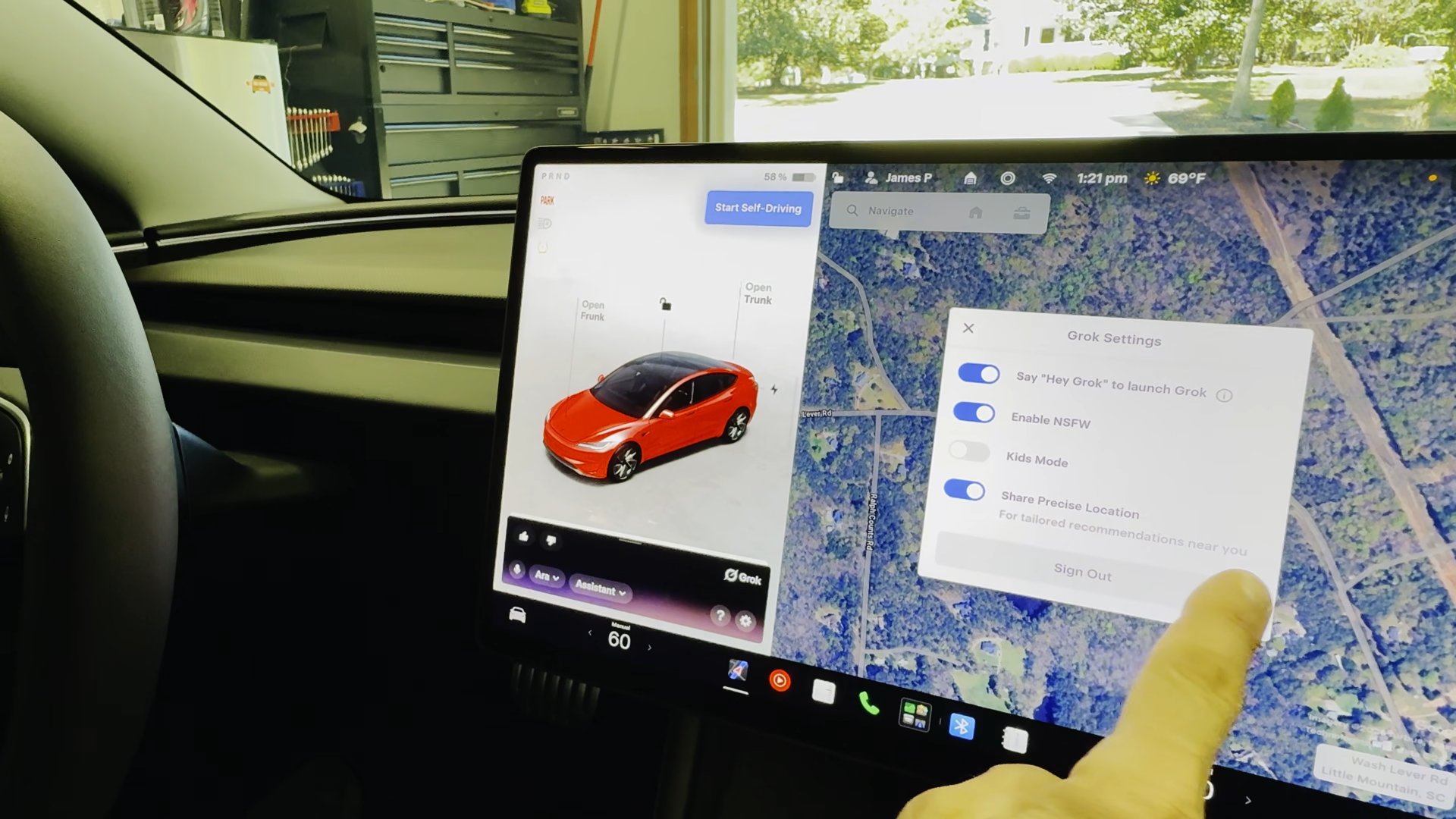
If your screen looks different from mine, you may need to log into Grok. Don't worry, it's free, and the free plan handles pretty much all your normal day to day requests. If you're doing a solo cross country trip and want to chat with Grok the whole way, you may need to upgrade.
On the road
This is where it gets fun. I asked for the nearest local burger joint with a great rating.. then changed my mind and asked for the best pizza place nearby with somewhere to sit down and eat.. then asked it to add a Supercharger stop after the pizza.
All of that used to be tap, tap, tap, tap, oh gosh wrong thing, back, tap, tap, search, look, search again, tap, select.. all while you're supposed to be driving or supervising FSD.
The one I use a good bit is temperature. "Set the temperature to 60" works, but the point is you can talk to it however YOU would say something. Like.. "actually, I'm cold."
And from the dashcam video: "Hey Grok.. save a dashcam clip." Done. (If you want all the ways to save clips, that's Episode 4.1.)
Parked: the glovebox and charge port
"Hey Grok.. open the glovebox." I know Tesla menus really well, and I still can't tell you how many times I've had a brief moment of panic trying to remember where the glovebox button is. Now I just ask.
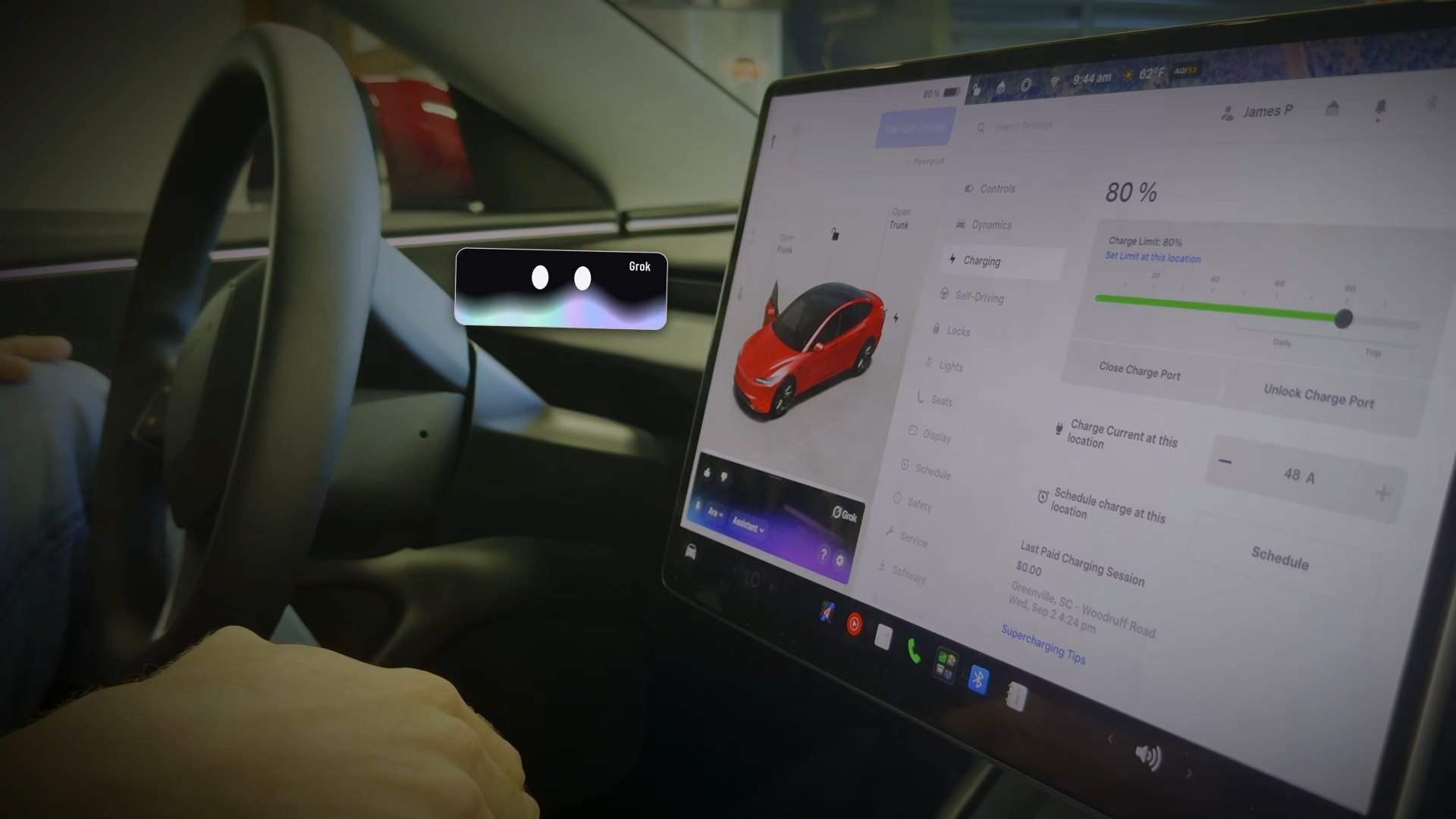
"Hey Grok.. open the charge port." Fun fact, there's a nickname for the charge port, and it works with Grok too. Your kids will think it's a riot, and honestly you probably will too. If you know it, drop it in the comments on the video!
Stack them
Then I gave Grok a real workout, all in one breath:
- open the glovebox
- I'm a little warm, so cool off the cabin
- turn the driver's ventilated seat to max
- my wife's in the passenger seat and wants her heated seat on medium
- directions to the nearest place that sells Whoppers
- open the charge port, because I need to charge a little before we leave
- and play the album Throwing Copper by Live on YouTube Music
Amazing.. and honestly a total game changer. The tech behind this is crazier than ever, but what really excites me is how much easier it makes the car. It's going to help a ton of people, especially the ones who aren't that great with tech.
The short version
- The new Grok really does control just about everything now.
- You need the AMD chip, software 2026.26 or higher, and a data connection.
- Long press the mic button, or turn on "Hey Grok" and just say it.
- Talk to it the way you'd normally talk.
If you find a command it struggles with, or you've got a crazy stacked command of your own, I'd really like to hear it in the comments on the video.
New here? Start the FSD series with Episode 1, "What Is Tesla FSD, Really?". Every episode after builds off it. Hope this helps you!