This is a deer standing on the interstate, saved straight from my car's cameras. You can see exactly how fast we were going and that FSD was driving.
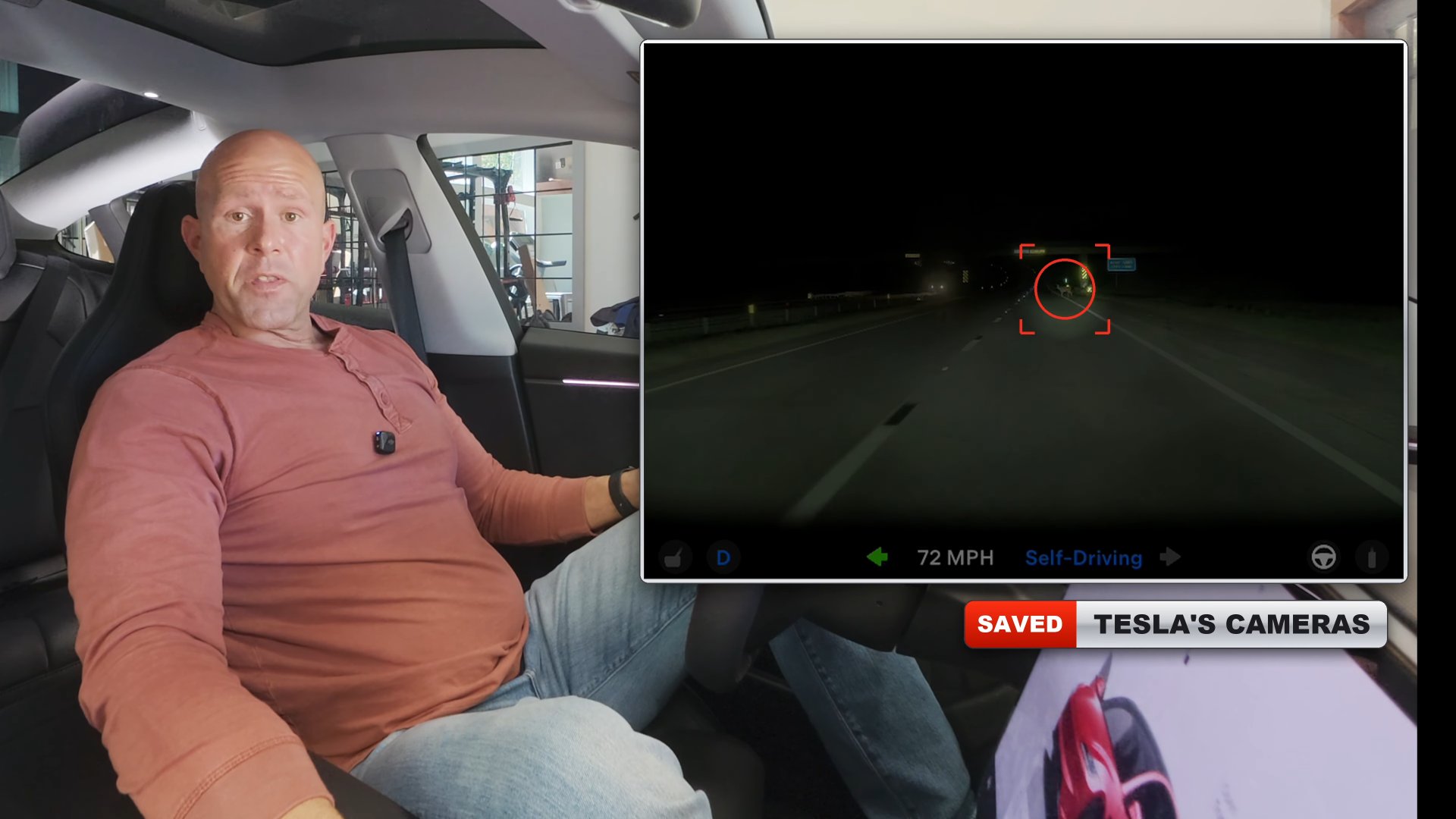
In Episode 4 we looked at the nine cameras on Strike (that's my car's name, BTW). This one is about saving what those cameras see, and then watching it back, right on your phone.
Why bother?
Most of the time you don't need this. But sometimes you really do!! I hope you never have a reason to NEED it, but if you do, this footage can be invaluable in court or with an insurance claim, and parts of this feature can even deter vandalism.
Then there are the novelty reasons. I can't tell you how many times I've seen something ridiculous on the way in to work, pressed the button, saved it, and then walked around the office showing my friends.
Step 1: the thumb drive
First, you need a thumb drive plugged into the port in your glovebox. That drive is where all the footage is actually saved, and this feature 100% won't work without one.
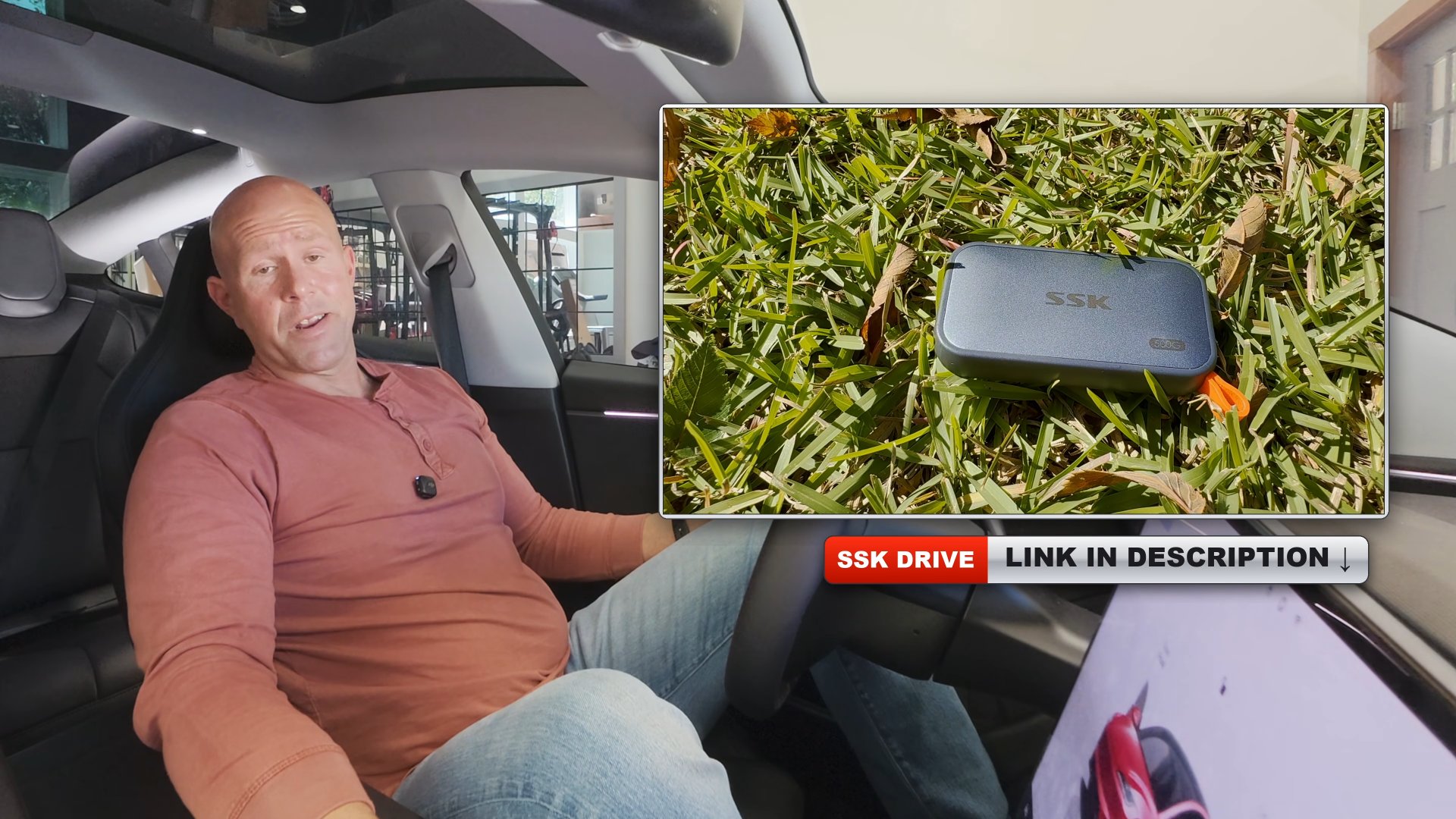
Tesla included one when I bought Strike, but it didn't hold a ton, so I swapped it for something bigger. If you don't have one, or want to do the same, get something fast with the capacity you want. I linked the exact one I use at the bottom, and it has worked flawlessly.
5 ways to save a clip
Once the drive is in, saving grabs the last 10 minutes from ALL the outside camera angles (not the cabin camera) and puts it on the drive.
- The touchscreen. Tap to save right on the car's screen. The video shows exactly where.
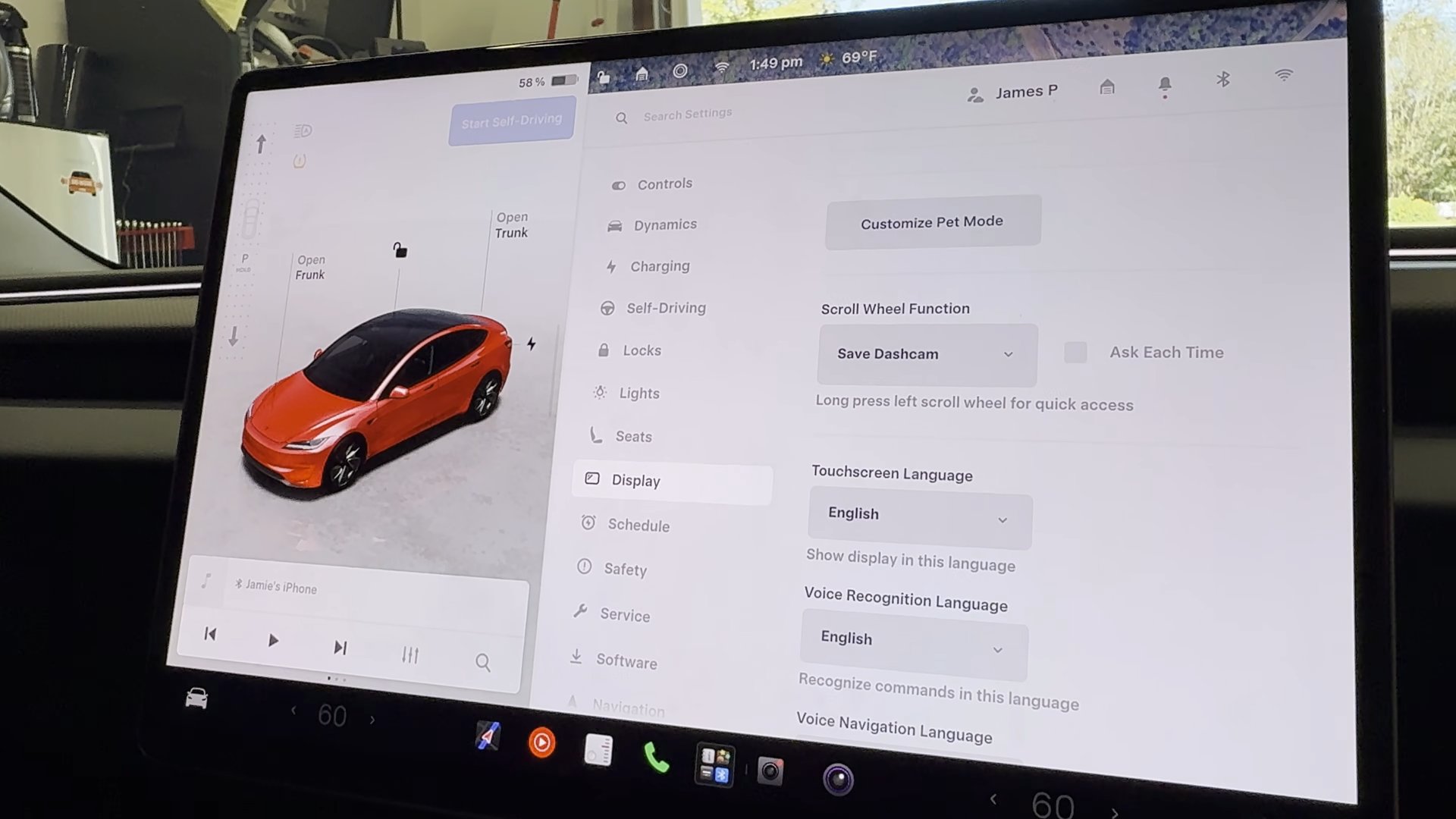
- The left scroll button. That left scroll wheel on the steering wheel can be set to one of a bunch of custom tasks, and one of them is saving a dashcam clip. I use this feature so much that I did it. Now I just press the button. Even if you don't want it for dashcam, it's worth a look for whatever you use all the time.
- Honk to save. You can set it to save whenever you honk. I get why some people like that, but I don't have it turned on in Strike. Just my personal preference.
- Just ask Grok. The newest way. "Hey Grok.. save a dashcam clip." Done. You don't have to press anything at all.
- Sentry Mode. For when you're parked and not even at the car. More on that below.
Grok was recently given the ability to control the car, and in my opinion it's one of the best new features, maybe the best period, because it makes so much of the car easier for everyone no matter how techy you are. I made a whole video on Grok controls covering how to tell if you have it, how to turn it on, and a bunch of fun examples.
Sentry Mode
The first four are mainly for while you're driving. What about when you're parked and not at the car?
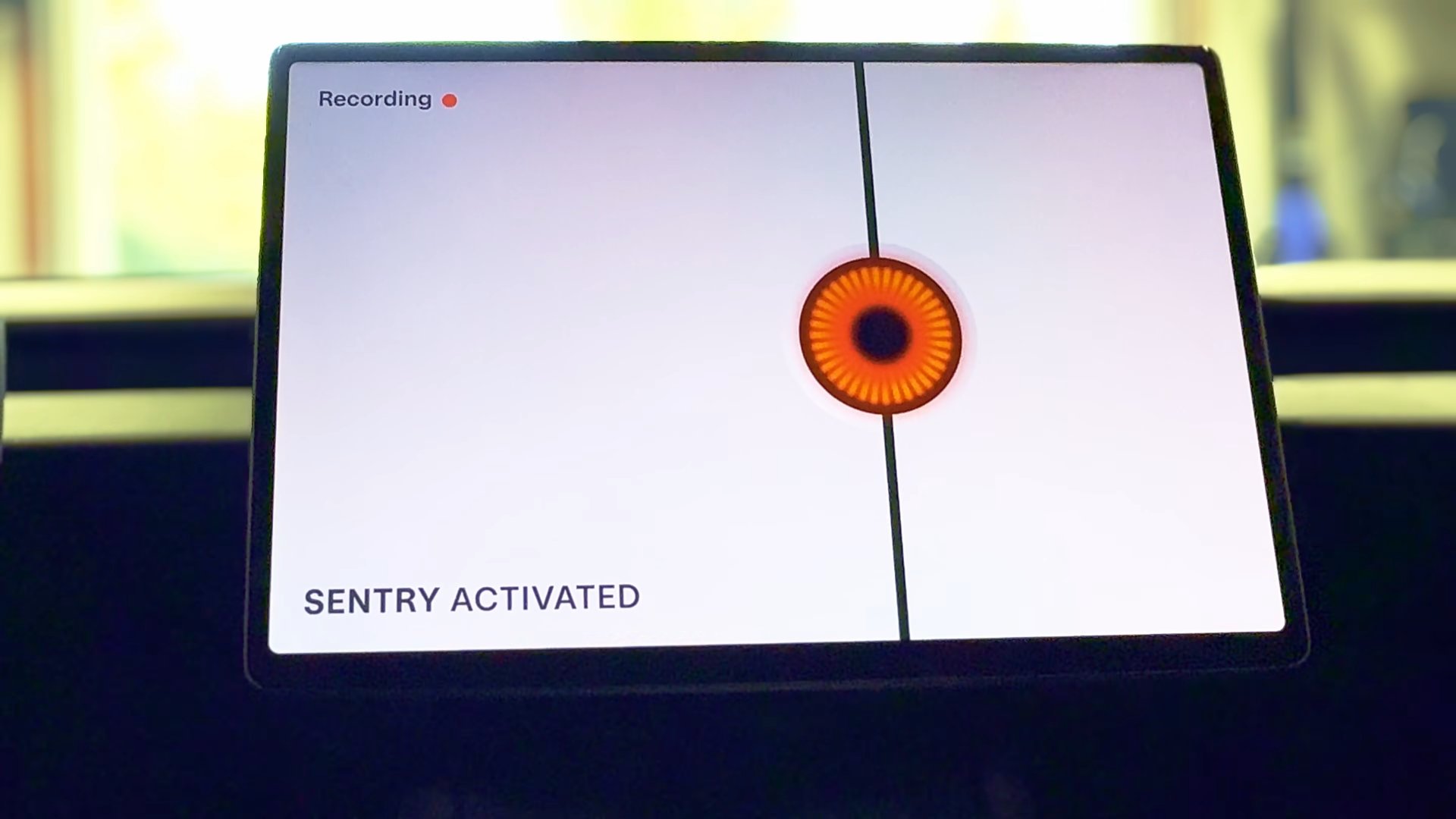
That's Sentry Mode. With it on, the car keeps watching while you're away. If someone walks right up to it or bumps it, it saves the clip on its own.
This is the part that can actually deter vandalism. When it detects something, the screen lights up with this menacing transformer-ish red eyeball and says it's recording. If someone is up to no good, that honestly should make them think twice.
3 ways to watch it back
- Right on the car's screen. Pick any clip and flip between all the camera angles.
- The Tesla app on your phone (my favorite). Not only does it show the video, but if it's not a Sentry clip it also shows how fast you were going, whether the blinker was on, what the steering wheel was doing, and whether FSD was driving.
- On a computer. I won't overload you with the technical details. If you're interested, look up the steps. It's a few steps, but it's not really that hard.
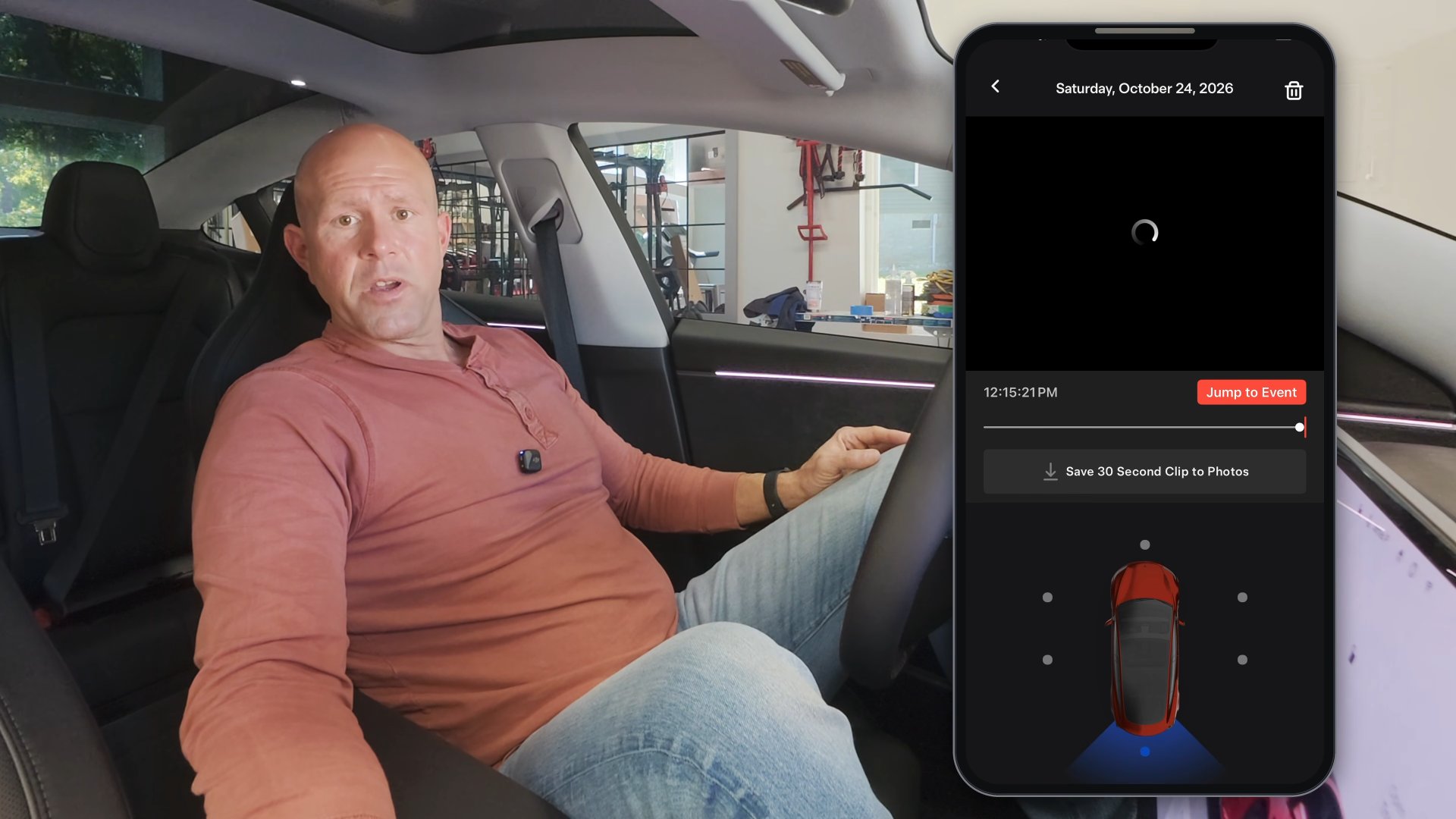
One more thing you need to know. When the drive is full, it doesn't stop recording. It overwrites your oldest footage. So if there's something you want to keep, SAVE it to your phone or computer so you don't lose it. That's the main reason I upgraded to the bigger drive, so I don't have to worry as much about constantly saving things off.
The short version
- A fast thumb drive is required.
- There are 5 ways to save footage.
- Sentry Mode saves events when you're parked and not even there.
- You can watch it on the car's screen, your phone or a computer.
- Save anything you want to keep so it doesn't get overwritten.
Hope this was helpful!
Stuff I actually use (from this post) Full honesty.. if you grab something through this link, I get a little kickback and it doesn't cost you a penny more. Thanks for helping the channel out! As an Amazon Associate I earn from qualifying purchases.
If you want to see what all nine cameras actually see, and why Tesla removed a bunch of other hardware, that's Episode 4 of the FSD series.